


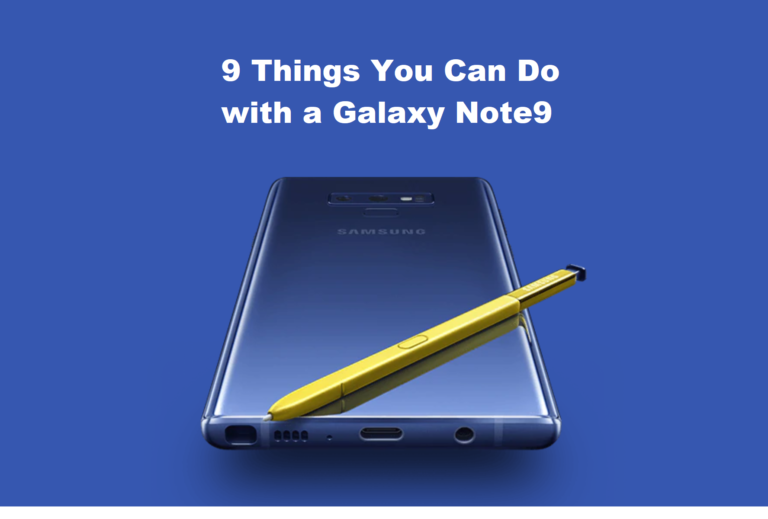

The Samsung Galaxy Note series goes beyond offering consumers a big-sized device – they have always been feature-packed to deliver productivity and encourage creativity. Its latest addition to the family, the Galaxy Note9, doesn’t stray away from the very essence that made the series a popular flagship for Samsung. In fact, the brand has improved several key features that further elevates the whole overall experience.
Of course, being a device that comes loaded with a wide range of capabilities, it is easy to get overwhelmed. Or even miss out of things. Which is why we’ve put together a list of things you could do with your Galaxy Note9.

- Desktop Like Experience
Your Galaxy Note9 can become more than just a mobile device; it can be your personal computer too – all thanks to the Samsung DeX. All you need is an external monitor and a DeX Cable. Connect a wireless keyboard and mouse, and voila, you can now use apps, review documents and watch videos on a PC-like interface.
- Double the Screen, Double the Fun
Let’s just admit that some things are just easier done on a PC. Well, with Samsung DeX, you don’t need to choose between using your phone and desktop. A master as multitasking, you can use your favourite apps on the Galaxy Note9, while still using Samsung DeX on your monitor.
 Express Yourself
It’s always great fun when you can express yourself animatedly through a picture. And what better way to do it with Samsung’s AR Emoji 2.0. The brand has made the feature more personalised for you when creating an avatar. Simply take a selfie of yourself to transform into your new virtual self. You can even send a range of animated AR Emoji stickers to your friends.
- Keeping Focus
Creating something unique is always a great feeling, especially when it comes to taking photos. With the Galaxy Note9’s dual lens camera, users can elevate their photography skills. Taking it a step further is its Live Focus function. It lets you put the spotlight on your subject by blurring out the background. You can even transform the background lights into an interesting shaped bokeh effect.

- Travelling Alone? No Problem
When you’re travelling alone, taking pictures of yourself can be a chore. The Galaxy Note9 reimagines how selfies are taken, thanks to its Bluetooth-enabled S Pen. Instead of overstretching your fingers trying to press the trigger button, just whip out your S Pen and click its button to take a selfie. If you’re travelling alone, just prop your device up and snap away using the S Pen even if you’re 10 metres away!
- Goodbye Bad Photos
Nobody’s perfect. That said, the Galaxy Note9’s Flaw Detection makes it that much easier to take the perfect shot. The camera intelligently detects blinks, blurs, smudged lenses and excessive backlight. No more unwanted surprises as you realised the photos taken were horrible! The feature will notify you of any flaws, so you can adjust and reshoot before it’s too late.

- Just Cruising
Imagine just coming back from a holiday and you want to show off your photos from the trip during dinner. As it is, the ambient lighting may not be the best. Your thumb and part of your palm is probably covering the display slightly while you flick through your photo album for your guests. Now put down that Galaxy Note9, take out your S Pen and use it to control your gallery. Single click for next, double click for previous. It is also not limited to your gallery, you can control apps like YouTube, Spotify and PowerPoint Presentation with the S Pen.
- Take Note
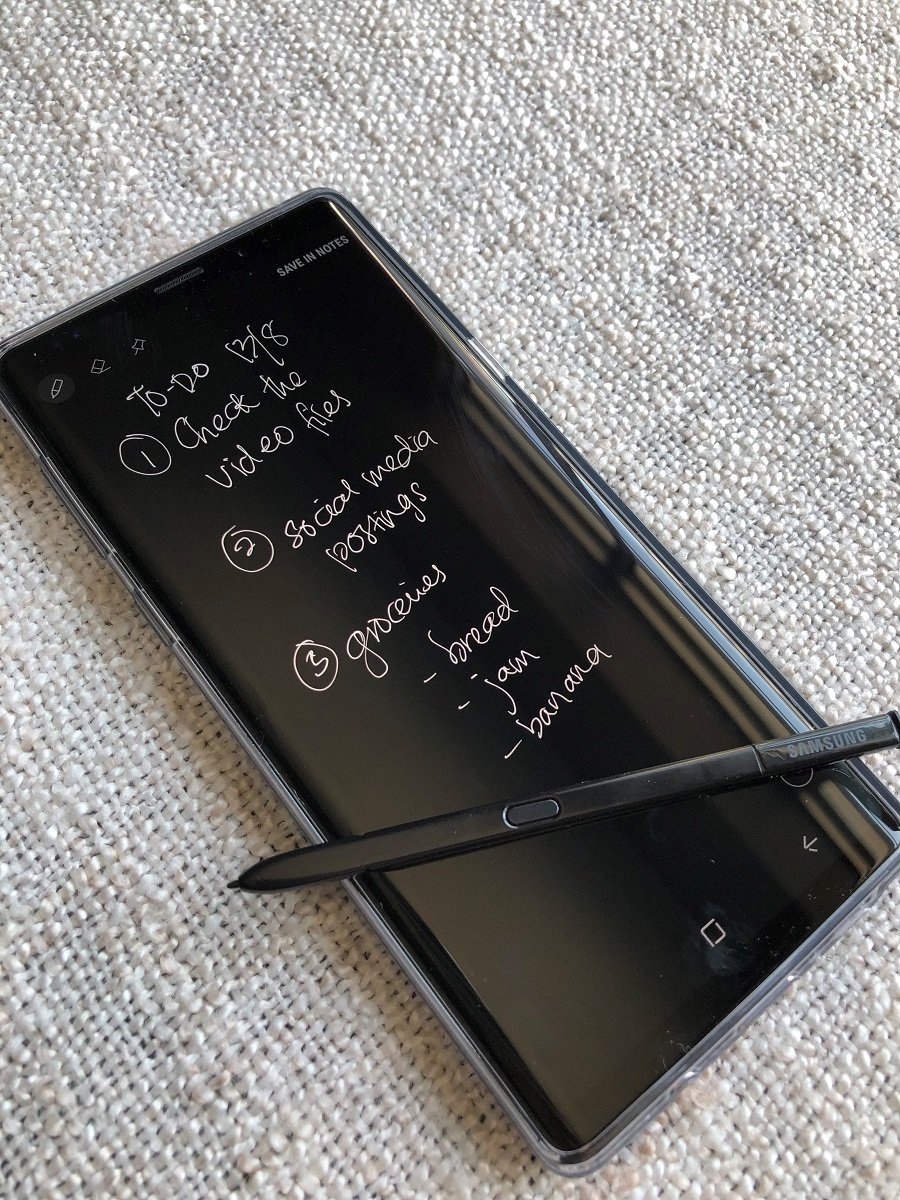
Just like its name suggests, the Galaxy Note9 is a master at taking notes. For instance, you just remembered something important or an idea just came to you, and you needed to jot it down somewhere before you forget. Pop out the S Pen to activate the Screen Off Memo and it will turn your screen into a notepad without unlocking your device. You can then save it in your Samsung Notes app in a jiffy.
- Hi Bixby
There will come a time when you’ll find yourself with your hands full. You can’t reach your Galaxy Note9 on the table. Just say ‘Hi Bixby’ and your own personal assistant may be able to help you. You could ask Bixby questions, or even ask it to perform some Quick Commands like ‘Good night’. The latter automatically goes through a checklist, include enabling ‘Do Not Disturb’ mode, turning off your mobile data and setting your alarm.




2 responses