Google launched Photos last with a mission to be home to all photos and videos for subscribers, the app is free and sees over 200 million using this service.
The application has delivered more than 1.6 billion animations, collages and movies, collectively freed up 13.7 petabytes of storage on devices which would take 424 years to swipe and also 2 trillion labels, of which 24 billion of those have been for … selfies..
Here’s a look some of the updates Google Photo has gone through to make storing your precious pictures and videos.
1. To fly through Google Photos on the web at photos.google.com, press Shift-? to see a list of keyboard shortcuts.
2. Narrow down your search results by searching for more than one thing at a time. Search for two people: “Mom and Dad,” or a person and a place: “Mom Yosemite,” a place and a thing: “Yosemite bear,” or a person and a thing: “Mom bear” to find that photo of your mama bear with the real bear.
3. Running out of Google storage? On photos.google.com, under settings, you can choose to convert all of your uploaded content from “Original quality” to the free “High quality” size to recover lots of space.
4. Enter your favorite emoji (? ? ? ? ) into search to pull up your corresponding photos.
5. On photos.google.com, easily find the photos you recently uploaded by going to search, then choosing “Show More” and then “Recently Added.”
6. Tap into your device folders from the top of the albums page on Android, and see which folders are being backed up. Double-check that all those screenshots are safe!
7. Create a shared album for your family. Every time someone adds a new photo, everyone will get a notification so they can see your latest photo or video.8. Have you spied the easter egg in the photo editor on Android? Hint…It’s out of this world.
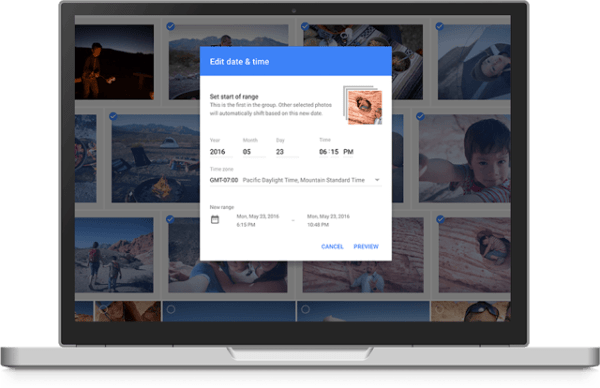
9. Occasionally photos can appear out of order in your gallery—perhaps because the date was incorrectly set on your phone or camera when you took them. On photos.google.com, you can edit both the time and time zone of a photo or group of photos to put them in the right order in your library. Change one and they all get adjusted.
10. At the top of the albums page on mobile, scroll the carousel to the right and tap on the videos tile to get a view of all the videos in your library (on photos.google.com, you’ll see videos at the top of the album page).